
Worldline
Website: worldline.com
Set up Account H2H merchant account
Step 1: Create Merchant Account
To create an account send connection request at the worldline.com/en/home/main-navigation/git or contact manager directly. Submit the required documents to verify your account and gain access.
Step 2: Get required credentials
Credentials that have to be issued:
- worldline__merchant_id → Merchant ID
- worldline__api_key → API Key
- worldline__api_secret → Api Secret
- worldline__test_mode → Test mode
- worldline__currency → choose currency (You can set these parameters according to available currencies and features for your Worldline wallets and services, but it's necessary to check details of the connection with your Corefy account manager.)
Connect Merchant Account
Step 1. Connect H2H account at the Corefy Dashboard
Press Connect at Worldline Provider Overview page in 'New connection' section and choose H2H Merchant account option to open Connection form.
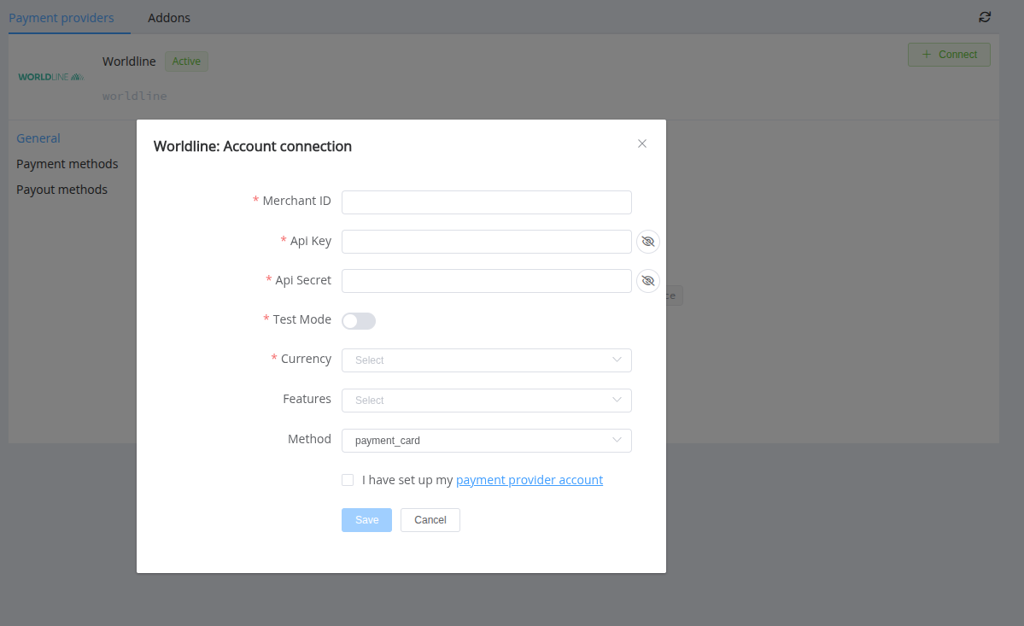
Enter credentials:
- Merchant ID
- API Key
- Api Secret
- Test mode
- Currency
Success
You have connected Worldline H2H merchant account!
API examples:
Minimum data set to create a payment invoices for payment_card_eur_hpp service
SALE

POST /api/commerce/payment-invoices HTTP/1.0
{
  "data":{
    "type":"payment-invoice",
    "attributes":{
      "service":"payment_card_eur_hpp",
      "commerce_account":"Hello world",
      "currency":"EUR",
      "amount":2,
      "flow":"charge",
      "gateway_options":{
        "cardgate":{
          "tokenize":""
        }
      },
      "customer":{
        "reference_id":"texcvxcv",
        "name":"John Doe",
        "email":"test@gmail.com",
        "phone":"380999999999",
        "date_of_birth":"2002-01-01",
        "individual_tax_id":"123123123",
        "address":{
          "full_address":"Test 31 Street",
          "country":"GB",
          "city":"London",
          "street":"Test 31 Street",
          "post_code":"31000"
        }
      },
      "test_mode":false,
      "options":{
        "allow_partially":false,
        "bypass_hpp":false,
        "send_operation_context_on_return":false
      },
      "reference_id":"5cc69025-3515-47c4-b70a-22718826e4ea",
      "service_fields":[
      ]
    }
  }
}

If some parameters are not sent in the transaction creation request, they will take the values from the set constants.
Here is a list of constants with their corresponding parameters:
- EMAIL → customer [email]
- COUNTRY → customer [address] [country]
- CITY → customer [address] [city]
- FULL_ADDRESS → customer [address] [full_address]
- POST_CODE → customer [address] [post_code]
- PHONE → customer [phone]
Question
"Still looking for help connecting your Worldline account?" Please contact our support team!